How to Merge Vertex in Blender: Masterful Techniques
Are you diving into the world of 3D modeling and finding yourself tangled in the complexities of Blender? You’re not alone!
Many aspiring artists and creators just like you are eager to master the art of merging vertices in this powerful software. Imagine transforming your chaotic mesh into a seamless masterpiece with just a few clicks. Sounds intriguing, right? In this guide, we’ll unlock the secrets of merging vertices in Blender, making your modeling process smoother and more efficient.
Stick around, and you’ll discover simple, step-by-step instructions that will have you merging like a pro in no time. Ready to elevate your Blender skills? Let’s get started!
Getting Started With Blender
Merging vertices in Blender simplifies 3D models. Select vertices, press ‘M’, and choose ‘At Center’ to merge. This technique helps in refining shapes and cleaning up geometry efficiently.
Starting your journey with Blender can feel like diving into a vast ocean of creativity, where the only limit is your imagination. Whether you’re a budding 3D artist or just curious about this powerful tool, getting the hang of Blender’s basics is essential. Let’s break it down step by step to make sure you’re all set to explore and create.Installing Blender
Begin by downloading Blender from the official website. It’s free, which is always a nice bonus. Once downloaded, installation is straightforward. Follow the prompts, and soon you’ll have Blender ready to launch. Blender is compatible with Windows, macOS, and Linux, so no matter your operating system, you’re covered.Basic Interface Navigation
Upon opening Blender, you’ll be greeted by a dynamic interface. Don’t be intimidated; it’s designed to enhance your workflow. The 3D Viewport is where the magic happens. Here, you can model, animate, and bring your ideas to life. Get comfortable with the toolbar. It holds the keys to your creative kingdom, with tools for transforming, scaling, and more.Essential Tools For Vertex Merging
Vertex merging is a fundamental skill in Blender. You’ll often use it to refine models and ensure seamless connections. The ‘M’ key is your friend. It brings up the merge menu, allowing you to merge at the center, at the cursor, or collapse vertices. Practice makes perfect. Spend time merging vertices in different scenarios to see the impact on your model. Remember, each tool in Blender has its purpose. Explore and experiment to find what works best for your creations.
Credit: www.reddit.com
Understanding Vertices In Blender
Merging vertices in Blender is a simple process. Select the vertices you want to merge, then press ‘M’ and choose a merge option. This helps in creating smoother 3D models by reducing unnecessary geometry.
Understanding vertices is crucial for creating 3D models in Blender. Vertices are the fundamental building blocks of any 3D object. They form the points where edges meet, shaping the geometry of your model. Grasping their function is key to mastering Blender.Definition And Importance
Vertices are the corner points of a 3D shape. Each vertex has a coordinate in 3D space. This coordinate determines its position in the model. The importance of vertices lies in their role in defining the model’s shape. By moving vertices, you can change the model’s form. Understanding vertices helps in refining details and creating accurate models.How Vertices Affect 3d Models
Vertices influence the smoothness and detail of a model. More vertices mean more detail. Fewer vertices can result in a blocky appearance. Adjusting vertex positions can enhance the model’s realism. Merging vertices can simplify the model, reducing complexity. This process can improve performance during rendering. Proper vertex management leads to efficient and high-quality models.Vertex Merging Techniques
Vertex merging is a fundamental skill for anyone working with 3D modeling in Blender. It allows you to refine shapes, optimize mesh topology, and create seamless transitions between different parts of your model. By mastering vertex merging techniques, you can significantly enhance your modeling workflow. Let’s dive into some practical methods to efficiently merge vertices in Blender.
Using The Merge Tool
Blender provides a handy Merge tool that simplifies the process of combining vertices. To use it, select the vertices you want to merge, then right-click to bring up the context menu. Choose “Merge” and select from options like “At Center”, “At Cursor”, or “Collapse”. Each option serves a different purpose, allowing you to precisely control the merging process.
Imagine you’re modeling a complex character’s face. Merging vertices at the center can help you smooth out features, while merging at the cursor lets you follow specific design lines. This tool is incredibly versatile, making it a favorite for many Blender users.
Shortcut Keys For Efficiency
Keyboard shortcuts are your best friend when aiming for efficiency. Blender’s shortcut for merging is “Alt + M”. This shortcut quickly opens the merge options without needing to navigate through menus. Try using this shortcut as a habit to speed up your workflow.
Think about how much time you spend searching for tools. By mastering shortcuts, you reclaim that time for creativity. Next time you’re tweaking your model, challenge yourself to use shortcuts consistently. You’ll notice how much faster you progress.
Merging Multiple Vertices
Sometimes, you need to merge several vertices at once to simplify your mesh. In Blender, select all the vertices you wish to combine and use the Merge tool or shortcut. Choose “Collapse” to bring them into a single point, effectively reducing mesh complexity.
Consider a scenario where you’re cleaning up a mesh with too many vertices. Merging multiple vertices can dramatically reduce file size and improve performance. It’s a technique often used in game development to optimize assets. Have you tried it yet?

Credit: www.reddit.com
Advanced Merging Methods
Advanced Merging Methods Merge vertices in Blender efficiently by selecting them, then press ‘M’ to access merge options. Choose from merging at the center, at the last selected, or at the cursor to refine your 3D models.
When you think you’ve mastered the basics of merging vertices in Blender, stepping into advanced merging methods can elevate your 3D modeling skills. These techniques allow for greater control and precision, especially when dealing with intricate designs. Let’s dive into some advanced strategies that can refine your workflow and enhance the quality of your models.Using Proportional Editing
Proportional editing is a powerful tool when merging vertices, especially in organic models. It allows you to adjust the influence radius, affecting surrounding vertices smoothly. Activate it by pressing the ‘O’ key and use the mouse wheel to change the radius size. This method is particularly useful for creating smooth, flowing transitions in models like characters or landscapes. Imagine you’re blending the vertices of a character’s face. With proportional editing, you’ll maintain the natural contours without creating harsh lines.Merging In Complex Models
Handling complex models requires a strategic approach to merging vertices. Break down the model into smaller sections to manage the process efficiently. Use Blender’s ‘Mesh’ menu and select ‘Merge’ for precise control over each vertex. In models with intricate details, like architectural structures, look for vertices that can be combined without losing key features. Create a plan or list of vertices to merge, ensuring you maintain the model’s integrity. This method reduces errors and keeps your workflow organized.Avoiding Common Mistakes
Common mistakes in vertex merging can lead to model distortion or geometry issues. One common error is merging too many vertices at once, which can flatten or warp your model. Always double-check the vertices you select before merging. Ensure that you are not merging vertices from different parts of the model unintentionally. This mistake often happens when working with complex meshes. Using Blender’s ‘Select’ menu can help isolate the vertices you need. Ask yourself, are you rushing through the merging process? Taking your time ensures precision and avoids these pitfalls. By being mindful and using these advanced techniques, you can create cleaner, more professional models in Blender.Practical Applications
Blender’s ability to merge vertices is not just a technical function but a gateway to endless creative possibilities. Whether you’re crafting detailed characters, optimizing models for games, or ensuring smooth animations, merging vertices can transform your workflow. Let’s dive into the practical applications of this powerful tool and see how it can elevate your 3D modeling skills.
Model Optimization
Merging vertices can significantly optimize your models, reducing file size and improving performance without sacrificing detail. It’s like cleaning up your workspace—removing unnecessary vertices makes your model cleaner and more efficient.
- Use fewer vertices to achieve the same shape, making your model lighter and faster.
- Enhance real-time rendering capabilities, crucial for game development.
Imagine a game scene where every millisecond counts; optimized models can be the difference between smooth gameplay and frustrating lag.
Creating Seamless Meshes
Have you ever noticed tiny gaps in your mesh that spoil the realism? Merging vertices can eliminate these imperfections, creating a seamless surface.
- Join edges perfectly, ensuring no light leaks or strange shadows in renderings.
- Guarantee fluid transitions between different parts of your model.
Think about the satisfaction of seeing a character’s skin flow naturally without awkward seams. It’s not just about aesthetics; it’s about delivering a polished final product.
Enhancing Model Detail
Sometimes, adding detail is as simple as smartly merging vertices. You can refine edges and shapes to create intricate designs that stand out.
- Craft detailed patterns by controlling vertex density in specific areas.
- Modify shapes subtly, enhancing realism and complexity.
Consider how a well-placed vertex merge can transform a plain surface into a masterpiece. It’s the little details that captivate the audience.
Have you explored the full potential of vertex merging in your projects? It might be the key to unlocking a new level of creativity and efficiency.
Troubleshooting Vertex Merging
Merging vertices in Blender can clean up models by combining overlapping points. Select the vertices you want to merge, then use the ‘Merge’ option under the ‘Mesh’ menu. This process simplifies the mesh and helps improve your 3D modeling workflow.
Merging vertices in Blender can be a straightforward task, yet sometimes you encounter unexpected issues that can disrupt your workflow. When vertices don’t merge as anticipated, it can lead to geometry errors or affect your model’s appearance. Knowing how to troubleshoot these problems is crucial for maintaining your project’s integrity.Fixing Merge Errors
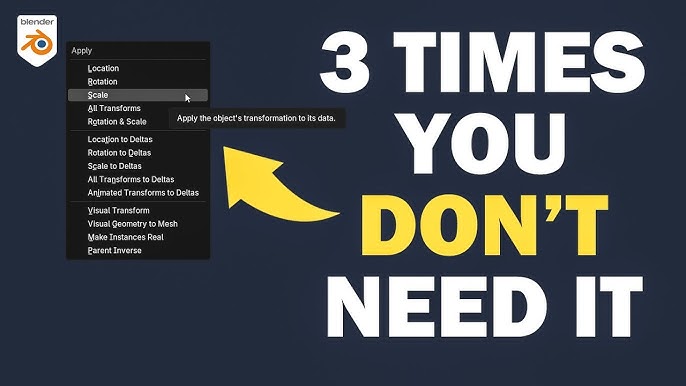
Errors during vertex merging can often stem from simple oversights. Ensure that the vertices you intend to merge are indeed selected. Using the ‘Merge’ function without proper selection is a common pitfall. Be mindful of the merge option you choose. ‘At Center’ merges all selected vertices at a central point, whereas ‘At Last’ merges them at the position of the last selected vertex. This choice can significantly impact your model’s geometry. Check your object’s scale and rotation. Sometimes, Blender behaves unexpectedly if transformations aren’t applied. Use ‘Ctrl + A’ to apply transformations before merging vertices.Identifying Common Issues
One frequent issue is overlapping vertices. Overlaps can occur during initial modeling, leading to unexpected results when merging. To identify overlaps, use the ‘Select’ menu and choose ‘Select All by Trait’ > ‘Interior Faces’. Another common problem is non-manifold geometry. Non-manifold edges can disrupt vertex merging. Use ‘Select’ > ‘Select All by Trait’ > ‘Non-Manifold’ to find and correct these areas. Ensure your model is in ‘Edit Mode’. Sometimes, operations intended for vertex merging are accidentally performed in ‘Object Mode’, leading to confusion. Double-check your mode before merging. Have you ever wondered why some vertices refuse to merge? Often, it’s due to hidden duplicate vertices. Use the ‘Remove Doubles’ option to clean up your mesh before attempting to merge. Troubleshooting vertex merging requires patience and attention to detail. By understanding these common issues, you can streamline your Blender projects and enhance your modeling efficiency.Tips And Tricks For Efficient Merging
Blender is an incredible tool for 3D modeling enthusiasts. Merging vertices efficiently can streamline your workflow and enhance your productivity. Here are some practical tips and tricks to help you merge vertices like a pro.
Time-saving Techniques
Quick shortcuts make merging faster. Use the ‘M’ key to merge vertices instantly. Hover over vertices and press ‘M’ to unite them. This shortcut saves precious time. Try using ‘Alt + M’ for merging in different ways. This opens a menu with options like merging at the center or cursor.
Use the ‘Snap’ feature to align vertices. Activate ‘Snap’ by clicking the magnet icon. Choose ‘Vertex’ from the drop-down menu. Move vertices closer to snap them together. This technique ensures precision and speed.
Improving Workflow
Organize your workspace for efficiency. Keep the ‘Mesh Tools’ panel open. It provides quick access to essential tools. This reduces the need to navigate menus. Customize your shortcuts for frequent actions. Tailor Blender to your needs. This personalizes your workflow.
Use ‘Vertex Groups’ for complex models. Group similar vertices for easy selection. This method simplifies large projects. You can manage groups without affecting other parts of the model.
Practice using ‘Proportional Editing’. Activate it with ‘O’ key. It allows you to move vertices smoothly. This feature helps when adjusting complex shapes. It ensures changes are subtle and controlled.

Credit: m.youtube.com
Frequently Asked Questions
Can You Merge Vertices In Blender?
Yes, you can merge vertices in Blender. Select the vertices you want to merge, press ‘M’, and choose the desired merge option. Options include merging at the center, at the cursor, or collapsing. This feature helps in optimizing and cleaning up your 3D models efficiently.
How To Snap One Vertex To Another In Blender?
In Blender, select the vertex you want to move. Enable “Snap” by clicking the magnet icon. Choose “Vertex” as the snap element. Drag the vertex to the target vertex while holding “Ctrl” for precise snapping. Release to complete the action.
This ensures accurate alignment between vertices.
How To Merge Vertices That Are On Top Of Each Other?
Select overlapping vertices, press ‘M’, and choose ‘Merge at Center’ in Blender. This combines them efficiently.
How To Merge 2 Edges Into 1 In Blender?
Select the two edges in Blender. Press “F3” and type “Merge by Distance”. Choose it to merge edges.
Conclusion
Merging vertices in Blender is simple with practice. Start by selecting the vertices you need to join. Use the “Merge” tool to combine them. This action cleans up your 3D model. It creates smoother, more efficient designs. Practice regularly to enhance your skills.
Experiment with different projects. Each attempt will boost your confidence. Remember, mastering Blender takes time and patience. Keep exploring and learning. Soon, merging vertices will become second nature. Happy blending!

Home Improvement Expert & Senior Writer at HomeFixio
Eliot Granger is a seasoned home improvement expert with years of experience transforming living spaces. Specializing in everything from kitchen renovations to bathroom upgrades, Eliot shares his knowledge through practical, insightful articles. His passion for creating functional, beautiful homes drives him to offer expert tips and solutions for every corner of your house. As a trusted writer for HomeFixio, Eliot is dedicated to helping homeowners make informed decisions and achieve precision in their projects.