How to Apply All Transforms in Blender: Master Techniques
Are you struggling with mastering transformations in Blender? You’re not alone.
Many artists and creators find themselves tangled in the intricate web of scaling, rotating, and translating their 3D models. But what if you could streamline this process and achieve perfection in your designs? Imagine the satisfaction of seeing your creations come to life exactly as you envisioned them.
In this guide, you’ll discover how to apply all transforms in Blender effortlessly. We’ll break down each step into simple, digestible actions that you can easily follow. Whether you’re a beginner or a seasoned artist, understanding these essential techniques will empower you to elevate your projects. Dive in to unlock the full potential of your 3D creations and make your Blender experience smoother and more rewarding.
Credit: news.viverse.com
Basics Of Transformations
Transformations in Blender allow you to modify objects with precision. Use translate, rotate, and scale to change an object’s position, orientation, and size. Access these tools through the toolbar or shortcuts for efficient modeling.
Transformations in Blender are fundamental skills that every 3D artist should master. They form the backbone of creating and manipulating objects within your scenes. Understanding these basics can significantly enhance your modeling efficiency and precision. Whether you’re moving, rotating, or scaling an object, these transformations allow you to shape your 3D world with ease and creativity.Translation Techniques
Translation, or moving objects, is often the first step in positioning elements within your scene. In Blender, you can easily move objects along the X, Y, or Z axis using the G key, followed by the axis letter. Experiment by moving an object to see how it changes your scene’s composition. Another useful method is using the 3D cursor as a pivot point. This technique lets you place objects precisely by moving them relative to the cursor’s position. Imagine how much easier arranging furniture in a virtual room becomes with these techniques at your fingertips.Rotation Essentials
Rotation is key to aligning objects and creating dynamic compositions. Use the R key in Blender, followed by an axis letter, to rotate objects around the X, Y, or Z axis. This straightforward method can quickly change the orientation of any object. For more complex rotations, consider using the Rotation Gizmo. This tool provides visual handles for intuitive control, allowing you to see how your object turns in real time. Have you ever noticed how a simple rotation can completely transform the mood of your scene?Scaling Fundamentals
Scaling adjusts the size of your objects, offering flexibility in design. Press the S key to scale an object uniformly, or add an axis letter to scale it along a specific direction. This is perfect for resizing objects without altering their proportions. Local scaling is another powerful feature. By scaling objects in relation to their local coordinates, you maintain their orientation relative to themselves. This is especially useful when working with complex models or when you want to maintain certain design aspects while scaling. By mastering these basic transformations in Blender, you open up a world of possibilities. Each technique offers unique ways to manipulate your 3D environment, encouraging creativity and precision in your projects. How will you use these tools to enhance your next 3D creation?Advanced Transformation Tools
Discover how to apply all transforms in Blender efficiently. Utilize advanced tools to manipulate objects, enabling seamless modifications. Transformations include location, rotation, and scale adjustments, ensuring precise control over your 3D models.
In Blender, advanced transformation tools offer a powerful way to manipulate 3D objects. These tools help in creating detailed and precise models. They provide flexibility and control over object positioning. Let’s explore some key features.Proportional Editing
Proportional editing allows smooth transitions between selected and unselected vertices. It helps in creating organic shapes easily. This tool is perfect for modeling landscapes or characters. The influence area can be adjusted to make subtle or dramatic changes. Use the scroll wheel to control the falloff size. This gives you more control over the transformations.Pivot Point Adjustments
Pivot point adjustments affect how objects rotate or scale. The pivot can be set to different positions. Options include median point, individual origins, and 3D cursor. This flexibility helps in achieving specific transformations. For example, rotating around the 3D cursor offers precise control. Choose the right pivot point for your task to enhance modeling accuracy.Snapping Options
Snapping options ensure objects align perfectly. This feature is useful for architectural modeling. Snap to grid, vertex, or edge to maintain alignment. Toggle snapping on and off as needed. It helps in positioning objects precisely without guesswork. Use snapping to create symmetrical designs and maintain consistency across your project.Using The 3d Cursor
The 3D Cursor in Blender is a versatile tool for applying transforms. It allows precise positioning of objects and adjustments to rotation and scale. By centering transformations around the 3D Cursor, users can achieve exact alignments and manipulations efficiently.
The 3D Cursor in Blender is a versatile tool that enhances modeling workflows. It serves as a pivot point for transformations, offering precision and control. Understanding its functions can significantly improve your 3D modeling efficiency. Here’s how you can set and utilize the 3D Cursor effectively.Setting The 3d Cursor
To set the 3D Cursor, first select the object you want to transform. Use Shift + Right Mouse Button to place the cursor at the desired location. The cursor can be moved to any point in the 3D space. This allows for precise placements and transformations. You can also set it to the origin of an object for symmetrical operations. Adjusting the cursor position is crucial in achieving accurate results.3d Cursor Transformations
The 3D Cursor can be the center of rotation and scaling. You can align the cursor to a specific vertex or edge, offering detailed control over transformations. This is useful in complex models, where precision is key. Using the cursor as a pivot point simplifies intricate designs. You can also snap objects to the cursor for accurate positioning. This method streamlines the process of aligning multiple objects. Understanding the capabilities of the 3D Cursor can greatly enhance your modeling skills. Implementing these techniques leads to more efficient and precise workflows in Blender.
Credit: www.youtube.com
Constraints And Control
Mastering transforms in Blender involves more than basic moves. Precision and control are essential. Constraints and control allow for exact manipulation of objects. This section explores techniques that enhance your modeling skills. These methods ensure your creations are accurate and intuitive.
Using Axis Locks
Axis locks restrict movement to specific directions. This ensures objects move only where you want them. To activate, press the X, Y, or Z keys. These keys lock the movement along the chosen axis. This technique is vital for precise positioning. Avoid accidental shifts and maintain model symmetry.
Parenting For Precision
Parenting links objects together for coordinated movement. Select the child object first, then the parent. Press Ctrl+P to set the parent. The child follows the parent’s transformations. This is useful for complex models. Maintaining structure is easier with parenting.
Working With Constraints
Constraints offer advanced control over object behavior. Access them through the constraints tab in the properties panel. Common constraints include “Copy Location” and “Limit Rotation.” These ensure objects move or rotate within defined limits. Constraints add precision to animations and models. Experiment to find the best fit for your project.
Applying Transformations
Applying transformations in Blender involves altering objects’ location, rotation, and scale. Easily adjust by selecting the object and using shortcut keys: G for move, R for rotate, and S for scale. Transform adjustments help in achieving the desired shape and orientation in your 3D projects.
Applying transformations in Blender is a key skill for 3D modeling. It involves adjusting objects’ location, rotation, and scale to fit your design. These changes can be temporary or permanent. Applying transforms correctly ensures your model behaves as expected. This guide will help you understand and implement these transformations effectively.Visualizing Changes
Before applying transformations, visualize the adjustments. Use the 3D Viewport to see your object’s current state. Check the location, rotation, and scale. This step helps you decide if changes are needed. In the Properties panel, find the Transform section. Here, you can view exact values. It’s helpful for precise adjustments. Compare the original and adjusted states visually. This ensures your changes align with your design goals.Applying Transforms Permanently
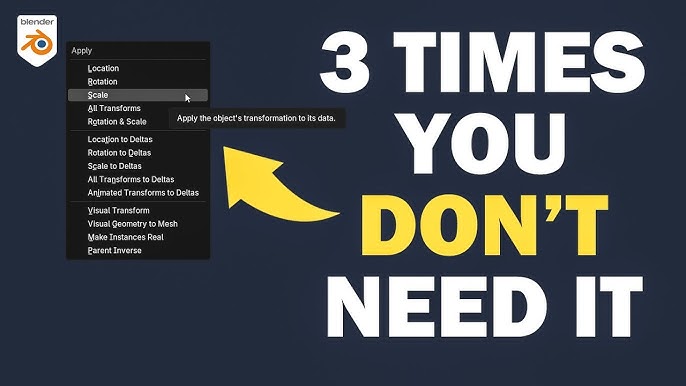
To make transformations permanent, use the ‘Apply’ option. Select your object, then go to the Object menu. Choose ‘Apply’ and select the transformation type. Options include Location, Rotation, and Scale. Applying transforms locks the changes. It resets the object’s origin to its current state. This is crucial for consistency in animations or further modeling. It prevents unexpected behavior later. Remember, once applied, transformations cannot be undone easily. Always double-check before applying. Save your project to avoid losing work. Consider using duplicates for experimentation. This keeps your original design intact.Common Mistakes
Overlooking the application of transforms in Blender can cause unexpected object behavior. Neglecting to reset scale, rotation, or location often leads to distortion. Ensure all transforms are consistently applied for accurate modeling outcomes.
Applying all transforms in Blender is a crucial step that ensures your 3D models behave predictably. However, even seasoned Blender users sometimes fall into common pitfalls. By understanding these mistakes, you can save time and prevent frustration in your projects.Avoiding Scale Errors
One frequent mistake is not applying scale transformations. When you scale an object without applying the scale, it can cause unexpected behavior during animations or when using modifiers. Imagine sculpting a detailed model only to see it distort because the scale wasn’t applied. To prevent this, always apply the scale after resizing your object. You can do this by pressing Ctrl + A and selecting ‘Scale’. Doing so normalizes the object’s scale, ensuring all future transformations and modifiers work as intended.Preventing Misalignments
Misalignments can occur when the transforms aren’t applied correctly, leading to objects not aligning as expected. This often happens when objects are moved or rotated without applying the location or rotation transforms. Have you ever tried to parent objects only to see them misaligned? To avoid such issues, always apply location and rotation transforms before parenting or aligning objects. Select the object, press Ctrl + A, and choose ‘Location’ or ‘Rotation’ as needed. This ensures your objects remain aligned, maintaining the integrity of your project. By staying vigilant about these common mistakes, you can streamline your workflow in Blender. What other challenges have you encountered while working with transforms? Share your experiences and solutions in the comments below!Practical Application
Applying all transforms in Blender can significantly enhance your 3D projects. Whether you’re modeling intricate designs or animating complex sequences, understanding how to apply transforms is crucial. The practical application of these transforms not only improves the efficiency of your workflow but also ensures the precision of your final output. You can transform your approach to 3D creation by integrating these techniques effectively.
Modeling With Transforms
When you’re modeling, applying transforms can streamline your process. Imagine you’re creating a symmetrical object; using the mirror transform can save time and effort. You can duplicate and modify parts without manually adjusting each component.
Consider scaling your model to match specific dimensions. Applying scale transforms ensures your model retains proportion, avoiding distortion when exported to other software. Experiment with different transforms to see how they affect your model’s geometry.
Animation Considerations
In animation, applying transforms can bring your characters and objects to life. Rotation transforms add dynamic movement, making scenes more engaging. Think about how a simple rotation can change the mood of your animation.
Transforming keyframes is essential for smooth transitions. Apply location transforms to create fluid motion between scenes. Ask yourself, how can transforms enhance the storytelling in your animation?
Don’t forget about timing. Applying transforms at precise moments can create impactful visuals. Experiment with different transform sequences to achieve the desired effect.

Credit: www.reddit.com
Frequently Asked Questions
How To Apply All Changes In Blender?
To apply all changes in Blender, use the “Apply Transform” option. This ensures transformations like location, rotation, and scale are finalized. Access this feature by right-clicking the object and selecting “Apply,” then choose the transformation type you wish to apply.
This helps maintain consistent editing results.
What Is Ctrl+l In Blender?
Ctrl+L in Blender selects linked elements based on the active selection, like vertices or edges. It helps in editing connected geometry quickly. Simply press Ctrl+L after selecting an element to expand the selection to connected parts, streamlining your workflow and enhancing productivity in 3D modeling tasks.
What Is Ctrl+j In Blender?
Ctrl+J in Blender joins selected objects into a single object. It simplifies the scene and reduces clutter. Use it to manage multiple objects efficiently.
Where Are All Transforms In Blender?
Find all transforms in Blender under the “Transform” menu. Access it by pressing “N” in the 3D Viewport. The “Object Properties” panel also provides transformation options like location, rotation, and scale. Use shortcuts G, R, and S for quick transformations.
Conclusion
Mastering transforms in Blender enhances your 3D modeling skills. Practice consistently to improve. Experiment with different settings to see what works best. Start simple, then explore more complex features. Use the tools effectively for smoother workflows. Remember, every project is unique.
Adjust transforms according to your needs. Blender offers a robust platform for creativity. Keep learning and stay curious. Share your creations and learn from others. Experience grows with time. Dive into Blender’s possibilities. Transform your ideas into reality with patience and practice.
Happy blending!

Home Improvement Expert & Senior Writer at HomeFixio
Eliot Granger is a seasoned home improvement expert with years of experience transforming living spaces. Specializing in everything from kitchen renovations to bathroom upgrades, Eliot shares his knowledge through practical, insightful articles. His passion for creating functional, beautiful homes drives him to offer expert tips and solutions for every corner of your house. As a trusted writer for HomeFixio, Eliot is dedicated to helping homeowners make informed decisions and achieve precision in their projects.